


Connecting to a VPS using a Private Key via Termius:
Step 1. From your Sitebunker client account, go to Services > My Products & Services and click on your OpenStack VPS.

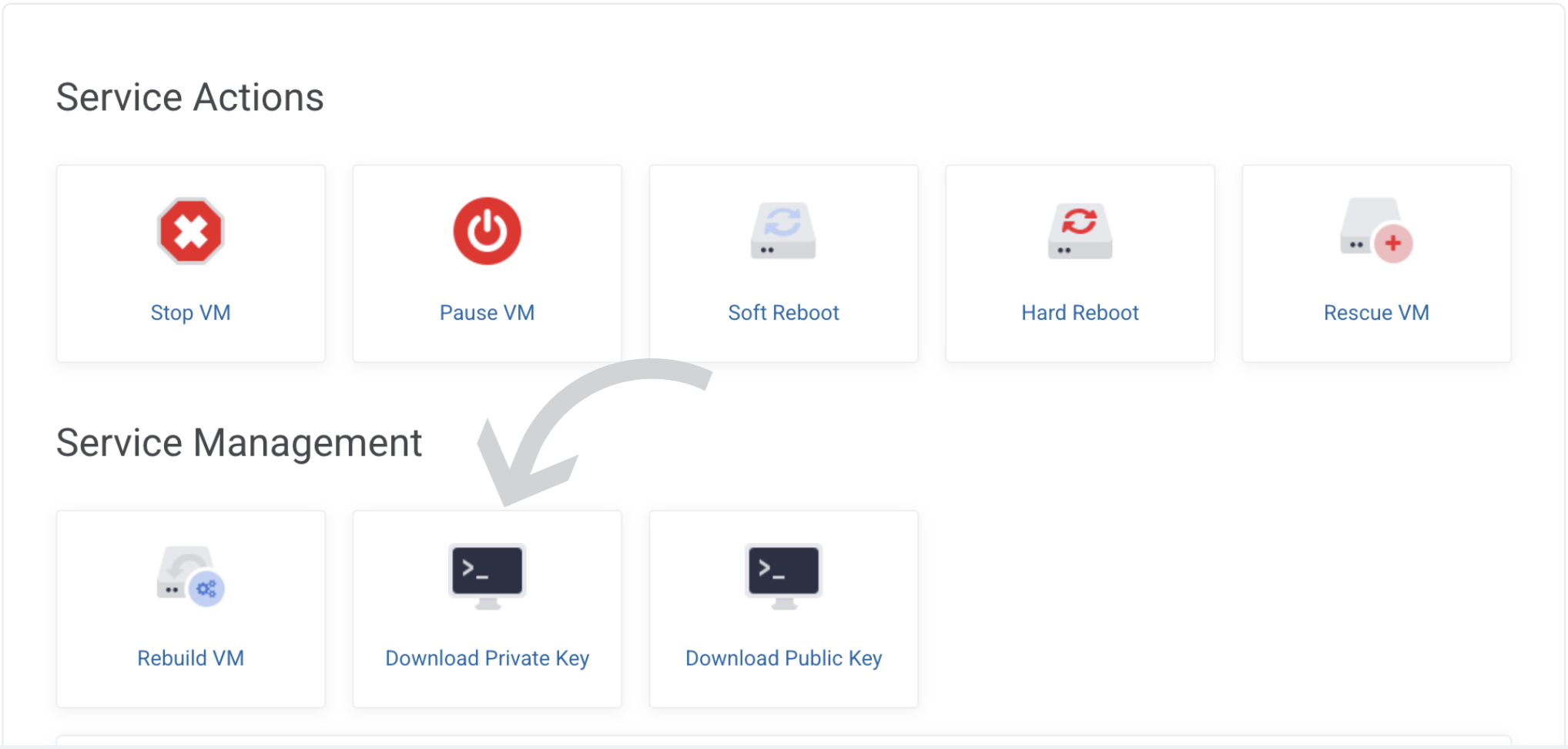
Step 2. At the bottom of the page, under Service Management, click Download private key.
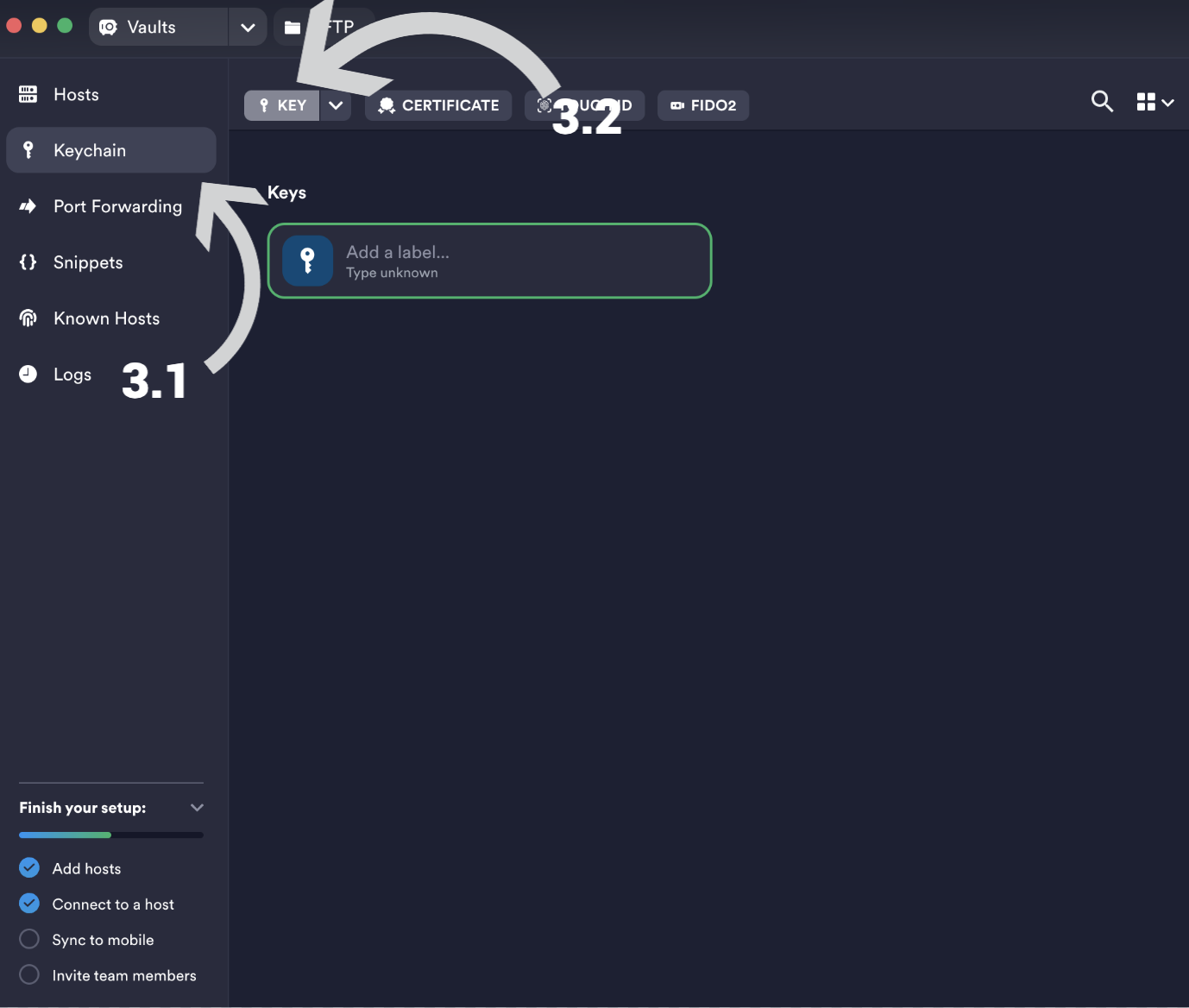
Step 3. Open Termius.
3.1. Go to Keychain.
3.2. Click Key.
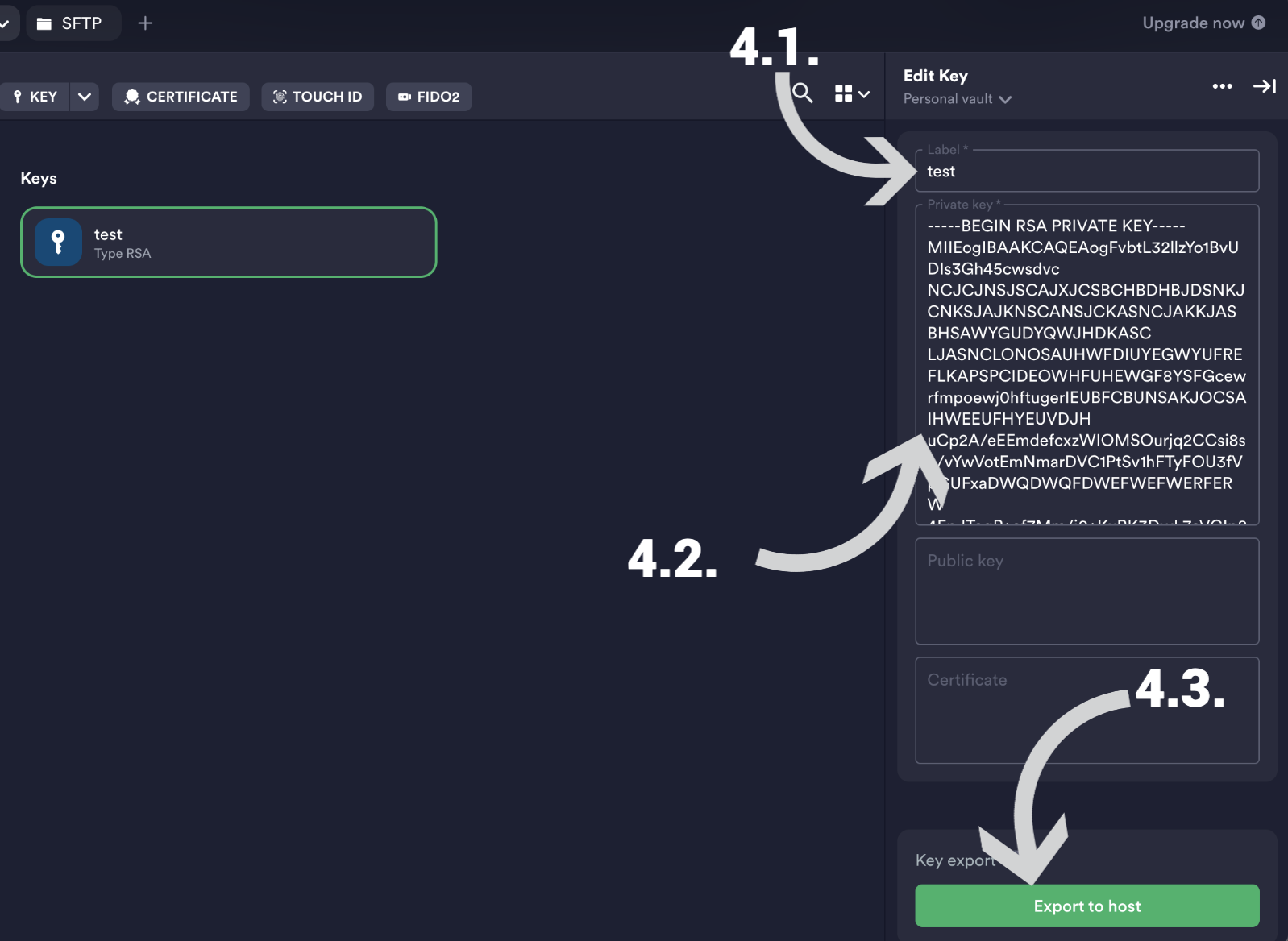
Step 4.
4.1. Add a Label.
4.2. Open the private key file downloaded in Step 2 using a text editor, copy all of its contents, and paste them into the Private Key field.
4.3. Click Export to host.
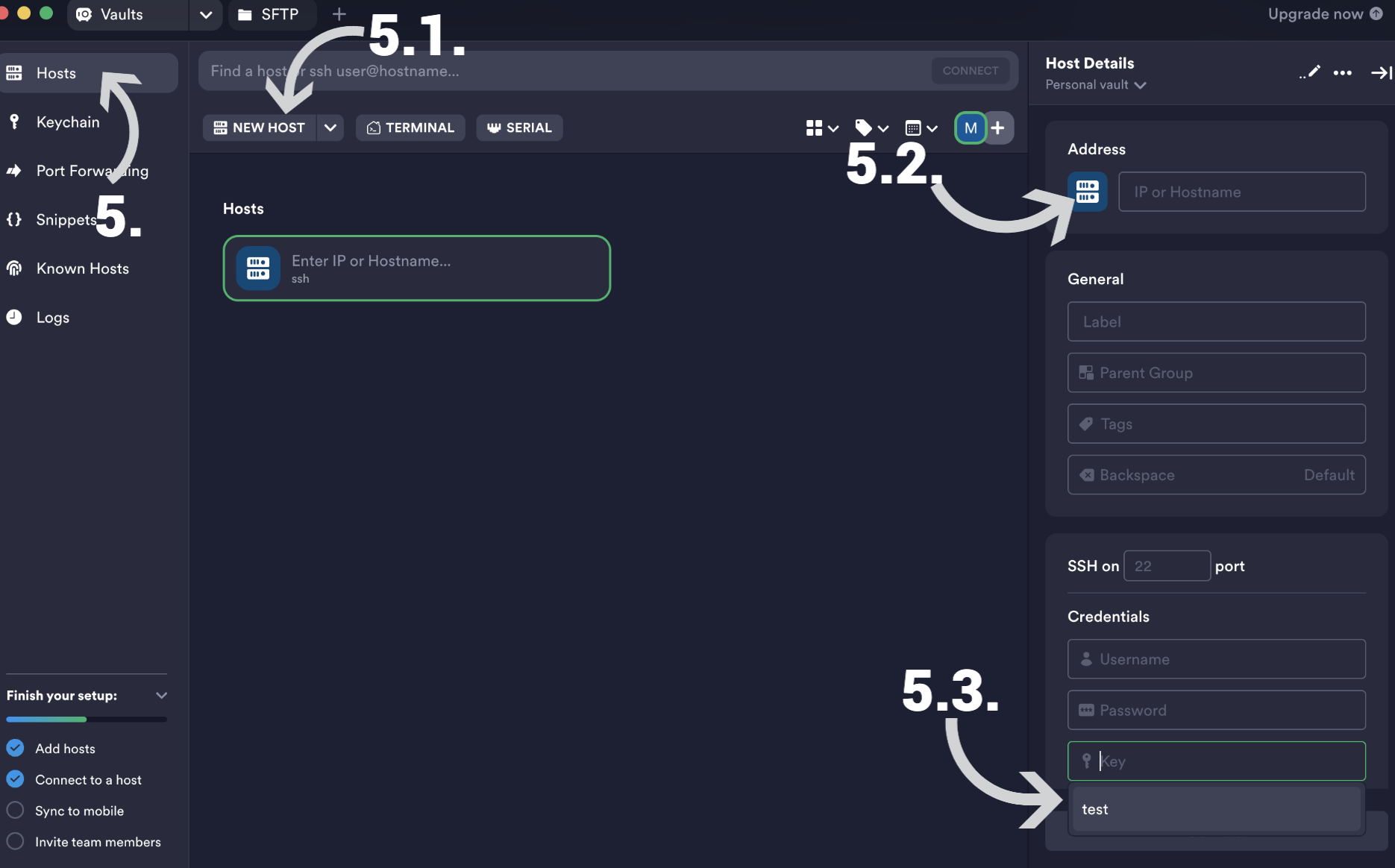
Step 5. Open Hosts.
5.1. Click NEW HOSTS.
5.2. In the Address field, enter your VPS IP address.
5.3. Click +Key, Certificate, FIDO2 and select the private key created in Step 4.
5.4. Click the Connect button.
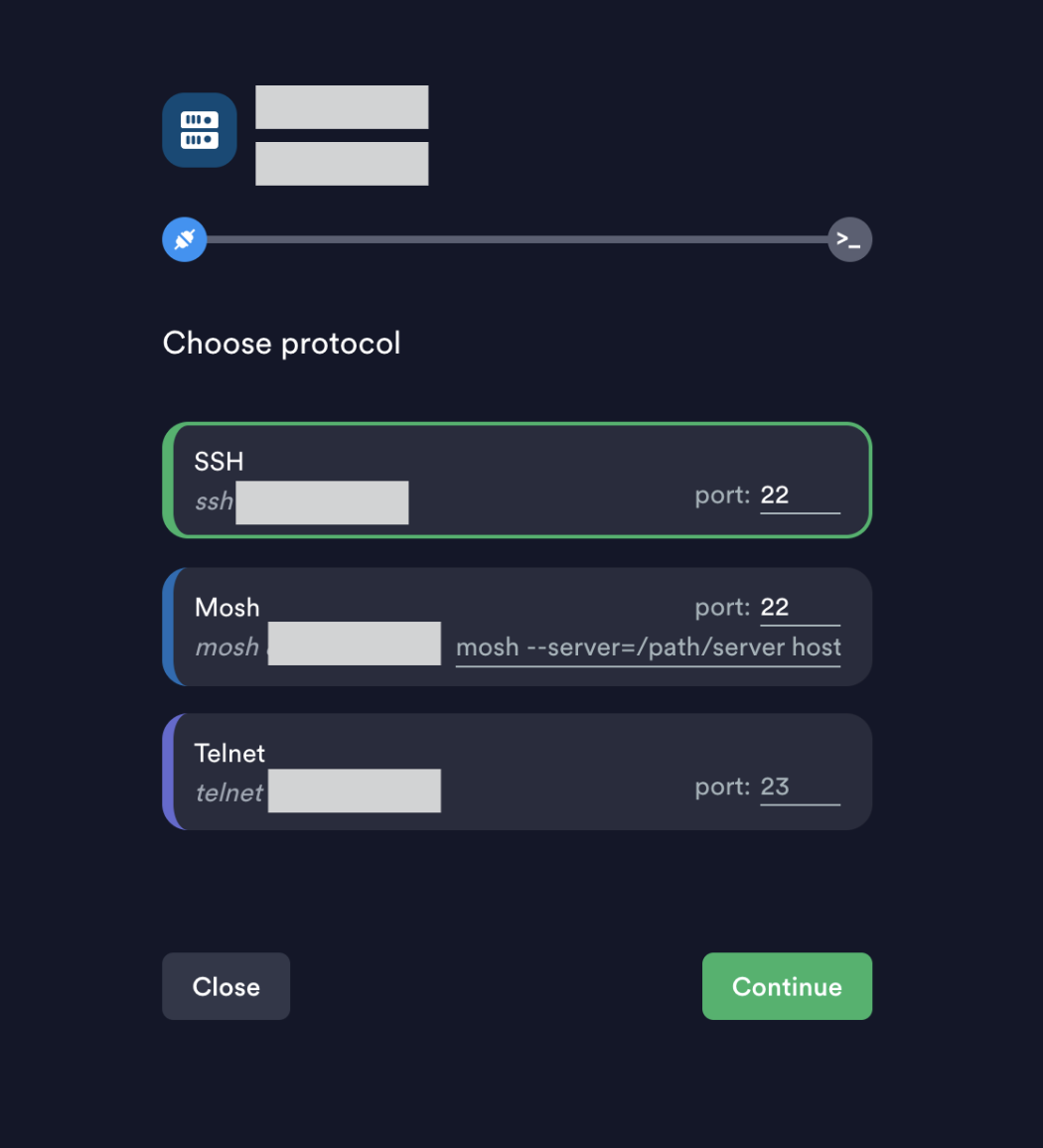
Step 6. Select the SSH protocol and click Continue.
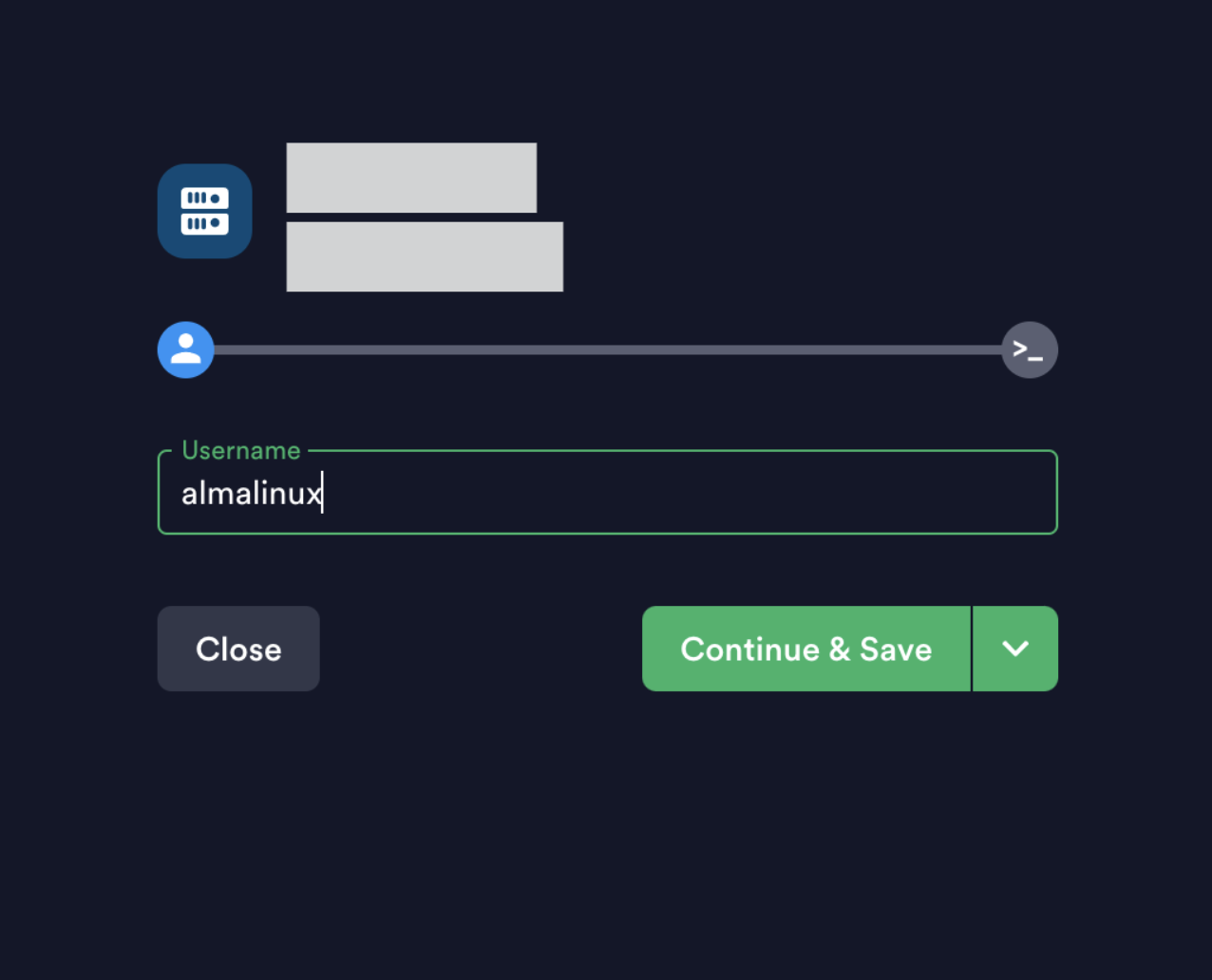
Step 7. Enter the correct Username based on the installed operating system, then click Continue & Save: https://docs.openstack.org/image-guide/obtain-images.html
Example: If you are using AlmaLinux, the username will be almalinux.
----Access root----
If you want root access, you must first log in using the default user of your instance's operating system (such as ubuntu, almalinux, freebsd, etc.).
Then run the following commands:
sudo su -passwd root
This will allow you to set a password for the root user.
After that, open the SSH configuration file:
nano /etc/ssh/sshd_config
Make sure the following options are set:
PermitRootLogin yesPasswordAuthentication yes
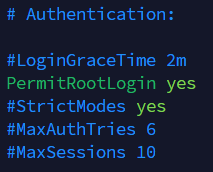

After making these changes, save the file and restart or reload the SSH service. The exact service name and command may vary depending on the operating system.
Once the changes have been applied, test the SSH connection with the root user in a new tab.
Important: We do not recommend enabling root access with password authentication due to brute-force attacks.